Nodes#
We’ve talked about how in a production environment, you’ll have multiple nodes in your cluster. For this course, we’ve been using a single node cluster with minikube. The nice thing about Kubernetes is that almost everything you do with it is abstracted away from the underlying infrastructure with the kubectl CLI.
All the commands we’ve been using locally will work the same way on a production cluster.
Ways to Deploy to Production#
There are several popular ways to deploy a Kubernetes cluster to production:
- GKE (Google Kubernetes Engine) / Autopilot
- EKS (Amazon Elastic Kubernetes Service)
- AKS (Azure Kubernetes Service)
- Manual Deployment
Gke, Eks, Aks#
These are all managed Kubernetes services, offered by the big 3 cloud providers. They’re all pretty similar, though I believe GKE is generally the most feature-rich of the three. GKE also has a cool auto-pilot mode that makes it so that you don’t have to worry about managing nodes at all.
The nice thing about a managed offering is that it can be configured to handle autoscaling at the node level. This means that you can set up your cluster to automatically add and remove nodes based on the load of your cluster.
Manual#
You can also set up your own cluster manually. I’ve worked on teams where a cloud engineering team has custom scripts that configure a cluster on top of standard EC2 instances. Then they have their own autoscaling scripts that add and remove nodes based on the load of the cluster. I happened to work at a company that manually deployed k8s to a group of AWS virtual machines, but you could also do the same thing on physical machines.
Deploying manually was more popular before the managed services were released, but it’s still a viable option if you want more control over your cluster.
Node Types#
Broadly speaking, there are two types of machines in a production Kubernetes cluster:
- Control Plane
- Worker Nodes
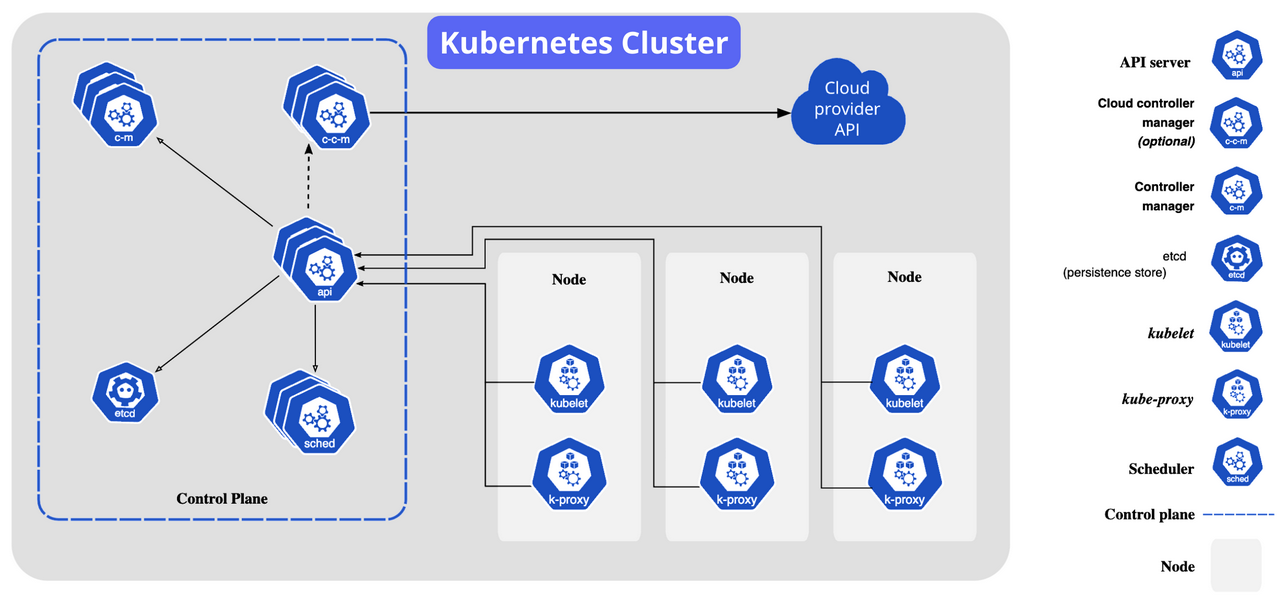
The control plane is responsible for managing the cluster. It’s where the API server, scheduler, and controller manager live. The control plane used to be called “master nodes”, but that term is deprecated now.
When you hear the word “node” used in isolation it’s usually referring to worker nodes. In fact, because I’m using GKE for Boot.dev, when I run:
kubectl get nodesI get back:
NAME                                       STATUS   ROLES    AGE     VERSION
gk3-kube-prod-nap-1cmjprlt-92e1dc91-jmi8   Ready    <none>   5d21h   v1.25.12-gke.500
gk3-kube-prod-nap-1cmjprlt-dfe4d6de-cq0k   Ready    <none>   5d21h   v1.25.12-gke.500
These are my worker nodes. They’re the machines that are actually running my containers. The control plane is fully managed by GKE, so I don’t have to worry about it. That’s usually fine because as the load on my cluster increases, I’m mostly concerned with scaling out my worker nodes and making sure they’re healthy. The control plane is fairly static.
Resource Requests#
We talked about resource limits, but there’s another critical concept to understand: resource requests.
A resource request is the amount of a resource that a pod requests from the node it’s running on. A resource limit, on the other hand, is the maximum amount of a resource that a pod is allowed to consume before it’s throttled or killed.
Why Do We Need Requests?#
Let’s say we have 2 nodes:
| Node | RAM |
|---|---|
| Node 1 | 8GB |
| Node 2 | 8GB |
And we have 4 pods:
| Pod | Node | RAM |
|---|---|---|
| Pod 1 | Node 1 | 3GB |
| Pod 2 | Node 1 | 3GB |
| Pod 3 | Node 2 | 3GB |
| Pod 4 | Node 2 | 3GB |
This is valid. Currently, only 6/8 GB of RAM is being used on each node. The trouble is, even though each node has 2GB of RAM left, if we try to add another pod, and it ends up utilizing more than 2GB of RAM (like the 3GB it will likely need), it will crash.
Resource requests solve this.
If we add a resource request of 3GB, Kubernetes will know that each pod needs 3GB of RAM to run. If we try to schedule a new pod with the request in place, k8s will gracefully tell us it doesn’t have enough resources to do so, or it will use a node in the cluster that has at least 3GB of RAM available.
Assignment#
Let’s set an absurdly high resource request for our synergychat-testram pods.
- Update the
resourcessection of its deployment. I used 40GB:
resources:
  limits:
    memory: 40000Mi
  requests:
    memory: 40000Mi
Apply the deployment, then check on your pods:
kubectl get podsYou should see that the pod is “Pending”. If it worked… well you have more money than me to spend on hardware. Go even higher!
- Once you’ve got it in a pending state,
describethe pod and look at the “Events” section of the output to see what’s going on:
kubectl describe pod <pod-name>Requests#
One of the most important things to get right when working with pod autoscalers in Kubernetes are the resource requests and limits. If you don’t set them correctly, you can end up with a situation where your pods are crashing, or your autoscaler is scaling up too many pods.
Generally speaking, my rule of thumb is:
- Set memory requests ~10% higher than the average memory usage of your pods
- Set CPU requests to 50% of the average CPU usage of your pods
- Set memory limits ~100% higher than the average memory usage of your pods
- Set CPU limits ~100% higher than the average CPU usage of your pods
Why these numbers? Consider several points:
Memory Is Scarier#
Memory is the scariest resource to run out of. If you run out of CPU, your pods will just slow down. If you run out of memory, your pods will crash. For that reason, it’s more important to add a buffer to your memory requests than your CPU requests.
Limits Are for Protection#
Limits should only take effect when a pod is using more resources than it should. Limits are like a safety net. If your limits are constantly being hit, you should either increase them or fix your application code so that it uses fewer resources.
As such, limits should generally be set higher than requests.
Requests Are for Scheduling#
Because requests are used to schedule pods, you want to make sure that your requests are high enough that once scheduled, your pods will have the resources, but not so high that you’re wasting resources. If you set your requests too high, you’ll end up with a situation where you can’t schedule pods because k8s thinks it doesn’t have enough resources, even though it does.
It All Depends!#
These are just rules of thumb! At the end of the day, you always need to understand how your applications work, and what resources they need. The right numbers for your applications might be drastically different than the numbers I’ve suggested here. for more helm