Containers#
A container is a standard unit of software that packages up code and all its dependencies so the application runs quickly and reliably from one computing environment to another.
– Docker
Containers, on the other hand, gives us 90% of the benefits of virtual machines, but are super lightweight. Containers boot up in seconds, while virtual machines can take minutes.
Virtual Machine Architecture#

Container (Docker) Architectures#
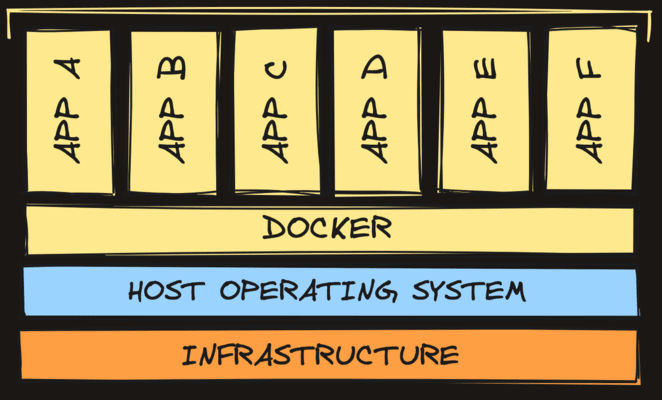
Why Are Containers Lightweight?#
Virtual machines virtualize hardware, they emulate what a physical computer does at a low level. Containers virtualize at the operating system level. Isolation between containers that are running on the same machine is still really good. For the most part, each container feels like it has its own operating and filesystem. In reality, a lot of resources are being shared, but they’re being shared securely through namespaces.
Images#
So a “container” is kinda like a lightweight VM, great… so what’s an image?
- Image: A read-only definition of a container
- Container: an instance of a virtualized read-write environment
A container is basically an image that’s actively running. In other words, you boot up a container from an image. You can create multiple separate containers all from the same image (it’s kinda like the relationship between classes and objects).
pull to your local machine
docker pull docker/getting-startedsee what u pull your local machine
docker imagesRun a Container#
Now that you’ve downloaded the getting started image, let’s run it inside a new container. The docker run command starts a new container from an image. Let’s break down the syntax:
# this is just an example, don't run this
docker run -d -p hostport:containerport namespace/name:tag-d: Run in detached mode (doesn’t block your terminal)-p: Publish a container’s port to the host (forwarding)hostport: The port on your local machinecontainerport: The port inside the containernamespace/name: The name of the image (usually in the formatusername/repo)tag: The version of the image (oftenlatest)
- Use the
runcommand to start a new container from the “getting started” image:
docker run -d -p 8965:80 docker/getting-started:latest- You should see the container running in the “Containers” tab of Docker Desktop. Run this on the command line to see the running containers:
docker psOn one of the columns you should see this:
PORTS
0.0.0.0:8965->80/tcp
This is saying that port 8965 on your local “host” machine is being forwarded to port 80 on the running container. Port 80 is conventionally used for HTTP web traffic. Navigate to http://localhost:8965 and you should see a webpage served from the container!
Run and submit the CLI tests against your “getting started” container on http://localhost:8965.
Stop a Container#
Okay, now you know how to start a new instance of a container from an image… but how do you stop it? There are two primary ways:
docker stop: This stops the container by issuing aSIGTERMsignal to the container. You’ll typically want to usedocker stop.docker kill: This stops the container by issuing aSIGKILLsignal to the container. This is a more forceful way to stop a container, and should be used as a last resort.
for id in $(docker ps -q); do
    docker stop "$id"
done
For persistent data, see docker-volumes.