Dockerfiles#
Docker isn’t only useful for running other people’s software (as we’ve been doing so far). It’s also a great way to build and package our own software.
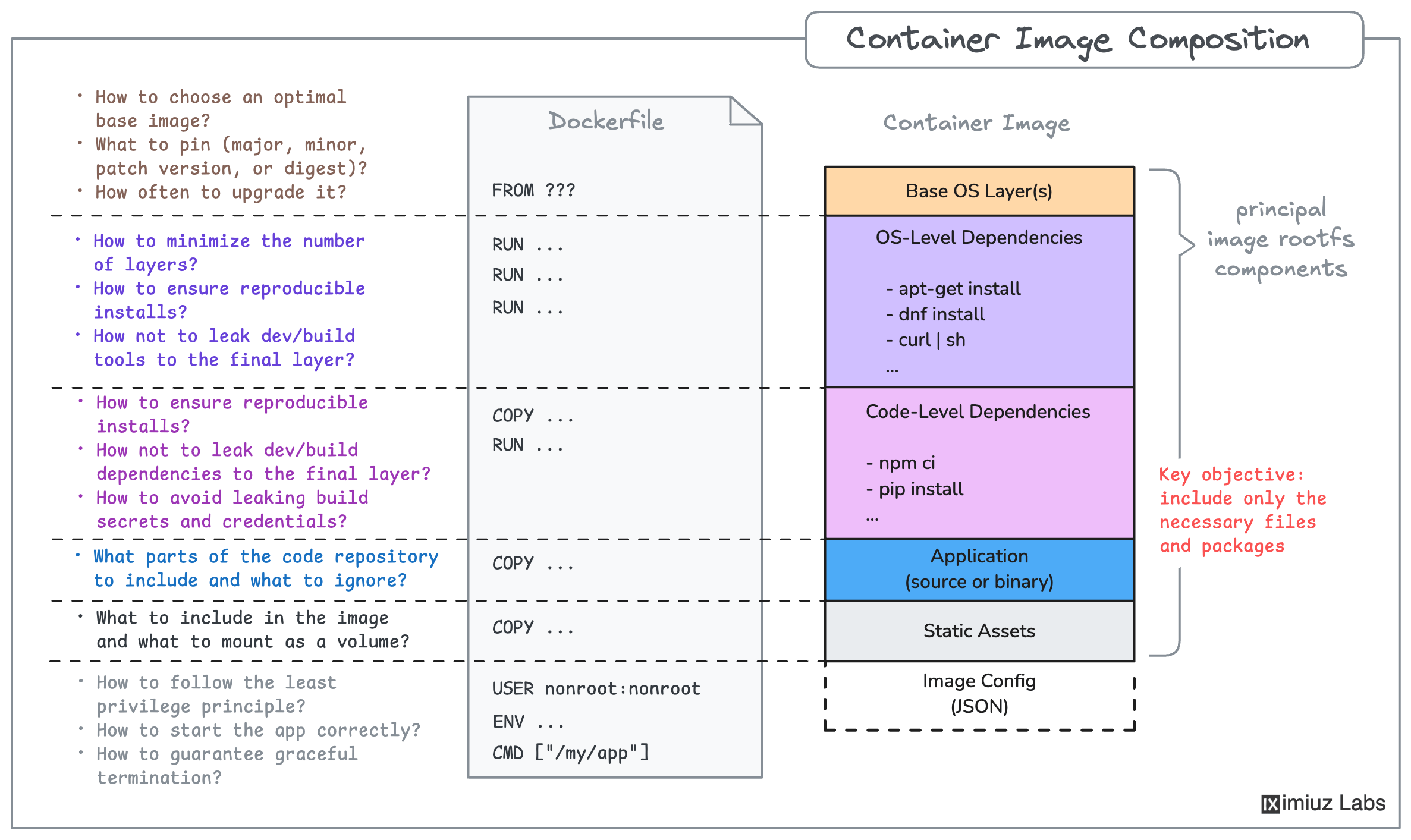
I’ve used Docker both ways. As a DevOps/platform engineer I’m usually using other’s images, but as a backend developer I was usually building images for our own servers.
Docker images are built from Dockerfiles. A Dockerfile is just a text file that contains all the commands needed to assemble an image. It’s essentially the “Infrastructure as Code” (IaC) for an image. It runs commands from top to bottom, kind of like a shell script.
Instead of manually installing dependencies on servers and making updates manually, we can check a Dockerfile into source control and build it automatically. Mhmmmm, automation
Create a file called Dockerfile in your working directory. If you’re using VS Code, I’d recommend installing the Docker extension. It will give you some nice syntax highlighting.
Inside the Dockerfile add these lines of text:
# This is a comment

# Use a lightweight debian os
# as the base image
FROM debian:stable-slim

# execute the 'echo "hello world"'
# command when the container runs
CMD ["echo", "hello world"]
Build a new image from the Dockerfile and call it helloworld:
docker build . -t helloworld:latestThe -t helloworld:latest flag tags the image with the name “helloworld” and the “latest” tag. Names are used to organize your images, and tags are used to keep track of different versions.
Run your image in a new container:
docker run helloworldIf all went well, you’ll see “hello world” printed to the console!
Run docker ps. You’ll notice that your container is not running anymore! All it did was print and exit. Just like regular programs, docker containers can execute simple commands that exit quickly, or they can execute servers that run until killed. It just depends on the command you give it.
See the stopped container with docker ps -a.
Delete the Dockerfile, we don’t need it anymore.
Dockerizing the Server#
Now that you know how to run your server manually, let’s run it in Docker! The steps are simple:
- Build the Server
- Create a Dockerfile
- Build an image using the Dockerfile (which will copy in the built server)
- Run the image in a container
- Create a
Dockerfilein the root of your server’s repo. Let’s start with a simple lightweight Debian Linux OS:
FROM debian:stable-slim- Add a
COPYcommand on the next line of yourDockerfile. In the case of a simple compiled Go server, all we need is the compiled program itself!
# COPY source destination
COPY goserver /bin/goserver
Replace “goserver” with the name of your server executable if it’s different.
The ADD command would also work here, but COPY is fine because we don’t need the extra functionality that ADD offers.
- Add a
CMDcommand as the last line in theDockerfile. This automatically starts the server process in the container when we run it.
CMD ["/bin/goserver"]- Build your Dockerfile into an image.
docker build . -t goserver:latest- Start a new container from the image. Be sure to forward the ports to your host machine.
docker run -p 8010:8010 goserverIf you get an exec format error, it’s probably because you built the go server for your local architecture, but you’re trying to run it on a Linux OS! To fix it, rebuild the binary (and then the Dockerfile) with these flags:
GOOS=linux GOARCH=amd64 go build
- You should be able to access your server from the browser just like before, but this time it’s running inside of Docker!
Creating an Environment#
You may be thinking, “What’s the point of dockerizing this simple service”? Well, at the moment, there are only a couple of benefits:
- Anyone with Docker can run your image, regardless of their OS
- You can easily deploy containers of your image on any cloud service that uses images (most of them) or on an orchestration server like Kubernetes.
- If your server were written in a language like Python or JavaScript, you could bundle the interpreter and dependencies inside the image so that you don’t need to reconfigure them on the server.
That said, because our app is so simple, there’s just not much environment required, and one of the best things about Docker is that it allows you to ship an entire environment.
So… let’s make it more interesting!
We’re going to make the port that our server binds to configurable: it will be set by an environment variable.
- Find the line that sets
portto a hard-coded value of8010and update it so that it reads an environment variable calledPORT. You can useos.Getenv:
port := os.Getenv("PORT")Make sure that the os package is imported:
import (
	"fmt"
	"log"
	"net/http"
	"os"
	"time"
)- Change the port to 8999 by setting an environment variable in your shell:
export PORT="8999"- Rebuild and run your Go program and make sure it serves on port 8999. Remember to replace
goserverwith the name of your binary.
go build
./goserver- Add an ENV command to your Dockerfile to set the port within the image. You’ll need to do it before the
CMDcommand so that the environment variable is set before the server starts.
ENV PORT=8991- Rebuild your Docker image:
docker build . -t goserver:latest- Rerun your Docker container, be sure to expose the correct port:
docker run -p 8991:8991 goserverexample for js project#
Start by reading the application code to understand its configuration and signal handling.
The index.js file reveals two important details:
- The app requires
PORT,LOG_LEVEL, andENVIRONMENTenvironment variables and exits with an error if any of them is missing. - It registers a graceful shutdown handler specifically for
SIGINT(not the Docker’s defaultSIGTERM).
FROM node:24-slim
WORKDIR /app

COPY index.js .

ENV PORT=8080
ENV LOG_LEVEL=debug
ENV ENVIRONMENT=development

RUN addgroup --system appgroup && adduser --system --ingroup appgroup appuser
USER appuser

STOPSIGNAL SIGINT

CMD ["node", "index.js"]
Here’s what each section does:
ENV’s set default values for the configuration variables. These become baked into the image and are used unless overridden at runtime withdocker run -e.USERswitches to a non-root user. Theadduser --systemcreates a system user without a home directory or login shell - appropriate for service accounts.STOPSIGNALtells Docker to sendSIGINT(instead of the defaultSIGTERM) whendocker stopis called. This matches the signal the application actually handles for graceful shutdown.