S3 Objects#
You can think of “object storage” and “file storage” as almost the same thing, and “objects” as “files.” The big technical difference is that objects are stored in a way that allows more efficient distribution across many machines (which is why S3 is so scalable and durable), but from a practical user’s standpoint, they’re very similar.
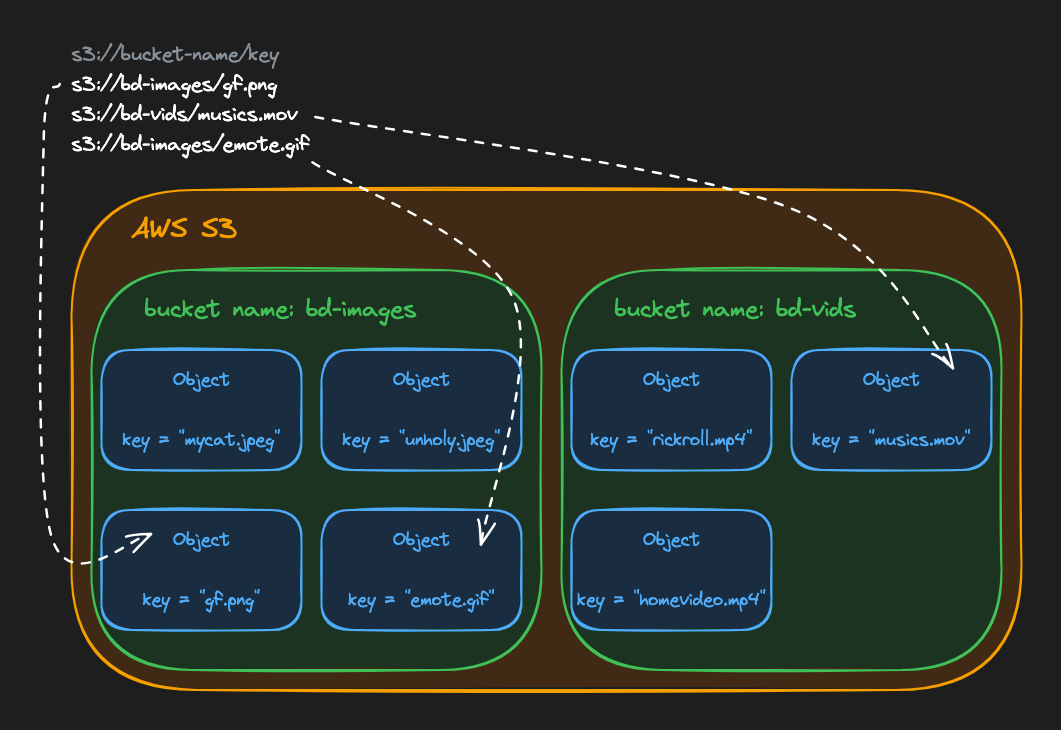
Storing stuff in buckets is simple: file A goes in bucket B at key C. You only need two things to access an object in S3:
- The bucket name
- The object key
Example#
PatientPing’s favicon needs to live in the bucket you just created, and browsers on the public internet need to be able to load it. Upload the favicon to your bucket, make it publicly readable, and verify access.
Cost check: Storing a small object like a favicon costs a fraction of a penny per year. S3 charges per GB stored and per request (with requests usually costing more than storage); you’ll stay within free-tier limits for this lesson.
- Download the favicon file using
curlorwget:
# Use one or the other
curl -o favicon.ico https://storage.googleapis.com/qvault-webapp-dynamic-assets/course_assets/patientping-favicon.ico
wget -O favicon.ico https://storage.googleapis.com/qvault-webapp-dynamic-assets/course_assets/patientping-favicon.ico- Navigate in the AWS console to “S3” → “Buckets” → click on your
patientping-favicon-bucket-YOUR_CODENAMEbucket. - Click “Upload” → “Add files” and upload the
favicon.icofile from this course’s assets. You should seefavicon.icolisted in “Files and folders.” Click “Upload” to finish. - Back on your bucket’s page, click on the
favicon.icoobject to view its details. Open its “Object URL” and notice that you get a permission denied error! Weird… - Back on the bucket’s page, click on the “Permissions” tab, then click “Edit” under “Bucket policy”. Add a policy that allows public read access to all objects in the bucket, then click Save changes (be sure to replace
CODENAMEwith your actual codename):
{
  "Version": "2012-10-17",
  "Statement": [
    {
      "Sid": "PublicReadAllObjects",
      "Effect": "Allow",
      "Principal": "*",
      "Action": "s3:GetObject",
      "Resource": "arn:aws:s3:::patientping-favicon-bucket-CODENAME/*"
    }
  ]
}
Making S3 objects publicly accessible means anyone with the URL can access them. For this learning exercise with a favicon, that’s fine. In production, you’d typically use CloudFront with Origin Access Control to keep the bucket private while serving content through the CDN.
- Visit the object’s URL in a browser again and verify that the favicon loads properly!
Tip#
If you prefer to use the AWS CLI:
aws s3 cp favicon.ico s3://patientping-favicon-bucket-YOUR_CODENAME/favicon.ico

aws s3 ls s3://patientping-favicon-bucket-YOUR_CODENAME