Subnetting#
A VPC’s address space is split into smaller networks called subnets. Each subnet lives in exactly one Availability Zone and gets its own CIDR block inside the VPC CIDR.
- Public subnets have a route to an Internet Gateway - resources here can be reached from (and reach out to) the internet.
- Private subnets have no direct route to the internet - good for databases and internal services.
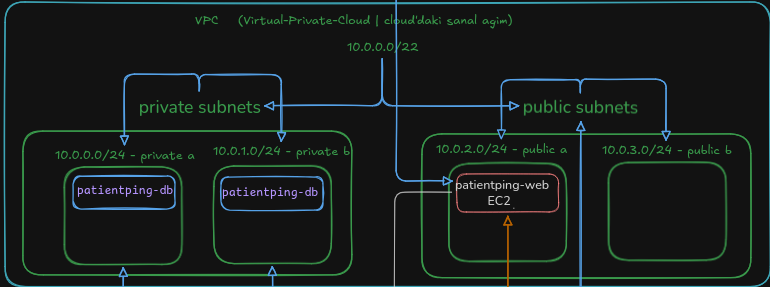
aws-Subnetting#
To do anything useful with our VPC, we need to divide it into smaller networks called subnets. This lets us create things like:
- Public subnets that anyone can reach on the internet
- Private subnets where we can put a database with our users’ data
Each subnet is connected to an Availability Zone (AZ), which is one or more physical AWS data centers in a region. If we put our subnets in different AZs, a power outage affecting one AZ should not affect the other.
Once upon a time we decided to test our datacenter generators and failover. So we flipped the big red switch… only to discover that no one had filled up the diesel tanks. That was an exciting day.
Let’s split our VPC CIDR, 10.0.0.0/22, into four subnets, with half in Availability Zone a and the other half in Availability Zone b.
| Name | Size | Availability Zone |
|---|---|---|
| patientping-private-a | 10.0.0.0/24 | a |
| patientping-private-b | 10.0.1.0/24 | b |
| patientping-public-a | 10.0.2.0/24 | a |
| patientping-public-b | 10.0.3.0/24 | b |
Each of these subnets will have 256 IP addresses: from 10.0.0.0 to 10.0.0.255, from 10.0.1.0 to 10.0.1.255, etc.
how to create subnet in aws#
PatientPing needs you to split our VPC into four subnets.
Cost check: Empty subnets don’t cost anything.
- Type “VPC” in the search bar to get to the networking section of the AWS Console.
- Click on “Subnets” in the left-hand menu, then click “Create subnet.”
- Select the
patientpingVPC and create subnets with the following settings. You’ll need to do this four times, once for each subnet.- Name:
patientping-private-a, Availability Zone:us-east-1a, CIDR Block:10.0.0.0/24 - Name:
patientping-private-b, Availability Zone:us-east-1b, CIDR Block:10.0.1.0/24 - Name:
patientping-public-a, Availability Zone:us-east-1a, CIDR Block:10.0.2.0/24 - Name:
patientping-public-b, Availability Zone:us-east-1b, CIDR Block:10.0.3.0/24
- Name:
- Return to the “Subnets” list and confirm that things look correct. You may see some unnamed subnets in your account’s default VPC, but look for the
patientpingones that you just created.
Tip#
If you want to use the CLI instead, here’s the command structure:
aws ec2 create-subnet \
  --vpc-id VPC_ID \
  --cidr-block CIDR \
  --availability-zone AZ_NAME \
  --tag-specifications 'ResourceType=subnet,Tags=[{Key=Name,Value=SUBNET_NAME}]'