ECS Security Groups#
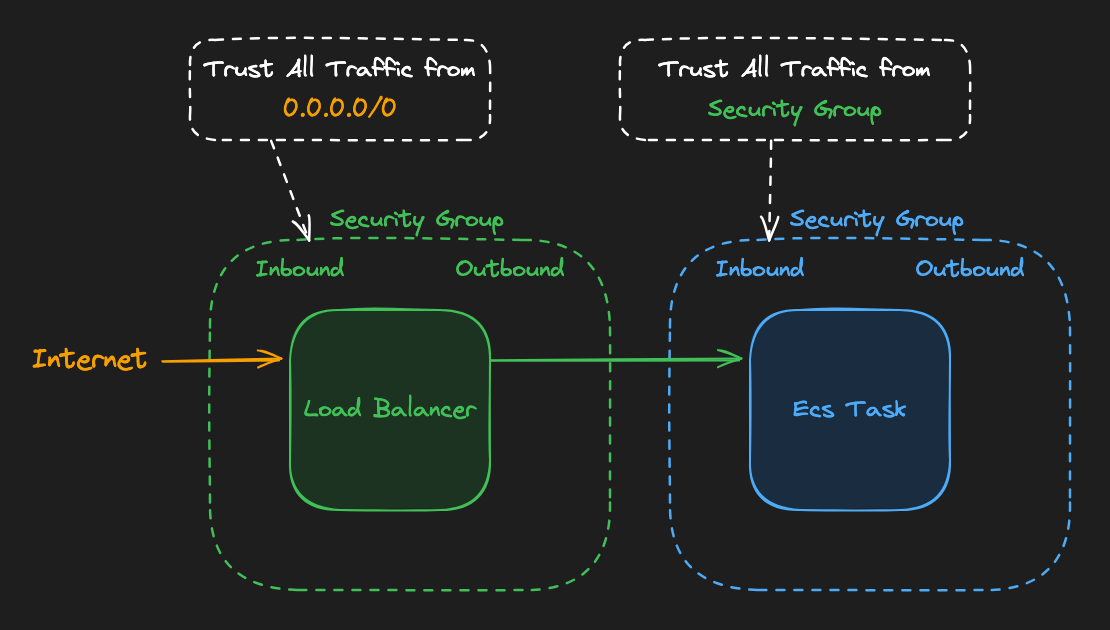
Now we need Security Groups to control who can reach our ECS tasks. We’ll place our tasks in public subnets; only the load balancer should be able reach them. Security groups let us define exactly which traffic is allowed. We’ll need two of them:
- One for the ECS tasks. This will be an internal security group that allows traffic from an Application Load Balancer (ALB) to our ECS tasks. A powerful feature of security groups is that they can reference other security groups instead of IP addresses, so we can allow traffic from the load balancer without hardcoding IPs.
- One for the Load Balancer. This will be an external security group that allows internet traffic to the load balancer.
Security groups referencing other security groups is one of those AWS features that seems obvious once you see it, but it’s easy to miss. It’s way better than managing IP addresses manually, especially when things change.
It also communicates the “intent” of the rule which makes it much easier understand as complexity grows.
Example#
Create security groups patientping-external and patientping-internal in your patientping VPC and configure traffic between them.
Cost check: Security groups are free. You only pay for the resources that use them.
- In the AWS console navigate to
EC2→Security Groups. - Create a
patientping-externalsecurity group.- Add an inbound rule to allow
HTTPon port80from0.0.0.0/0. - Description: “Allow HTTP traffic from the internet to the load balancer”
- VPC:
patientping
- Add an inbound rule to allow
- Create a
patientping-internalsecurity group.- VPC:
patientping - Add an inbound rule:
- Type:
All traffic - Source: Custom. Click on the search bar and select your
patientping-externalsecurity group from the dropdown.
- Type:
- Description: “Allow traffic from the load balancer to ECS tasks”
- VPC: